Building
Annotations
Pin feedback and notes to any element, have Vibr fix open feedback, and check the fixes.
Annotations are pins on the draft, like comments in a design file. They stay attached to their elements as the draft changes, and they're saved with the prototype.
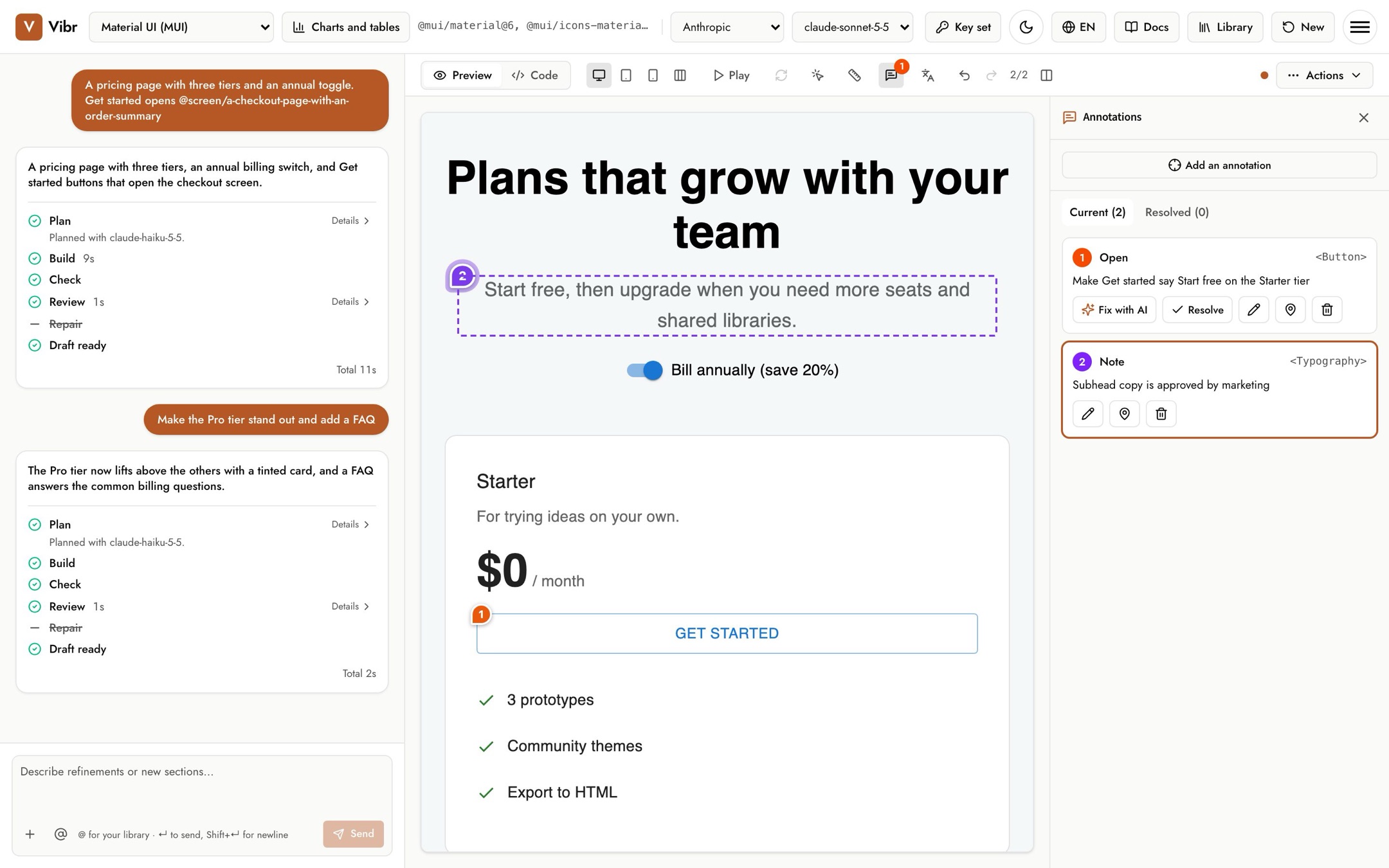
Add an annotation
- Select Annotations above the canvas. If nothing is pinned yet, Vibr goes straight to picking.
- Click an element on the canvas. Press Esc to stop picking.
- Choose Feedback or Note, write it, and select Add feedback or Add note. ⌘+Enter also saves.
- Feedback is a change to make. It stays open until it's resolved.
- Note is information for whoever builds it, like "Copy approved by marketing".
Statuses
| Status | Meaning |
|---|---|
| Open | Feedback that hasn't been addressed. |
| Fixed in v2, check it | Vibr made a version that addresses it. Look, then choose Looks right or Reopen. |
| Resolved | Done. It moves to the Resolved tab. |
| Note | Information only; notes don't need resolving. |
The orange count on the Annotations button shows feedback that's open or waiting for you to check.
Fix with AI
Select Fix with AI on a piece of open feedback, and Vibr runs a request to address it. When more than one is open, Fix all open feedback with AI handles them in one run. When the new version is ready, the feedback is marked as fixed, for you to check.
You can also select Resolve to close feedback yourself, for example after you fixed it with a request of your own.
Edit, move and delete
Each card has buttons to edit the text, move the pin to another element, and delete it. If an element isn't on the canvas in the current version, the card says so; move the pin, or fix it anyway.
Annotations in exports
In the Export menu, Include annotations controls whether exports carry them. When it's on, an exported app shows the pins with a button to show or hide them, and a flow export adds an annotations.md file.