Your library
Images, videos, documents, themes, type and icons
Add your own images, videos, documents, color themes, type ramps and icon fonts to the library, and use them in any request with @.
Everything in these library tabs can be dropped into a request with an @ mention. Select an item to copy its mention, then select Add to prompt, or type @ in the box and pick it from the list. You can also drop files onto the library to add them, or select + under the prompt box, then Add to library.
Images
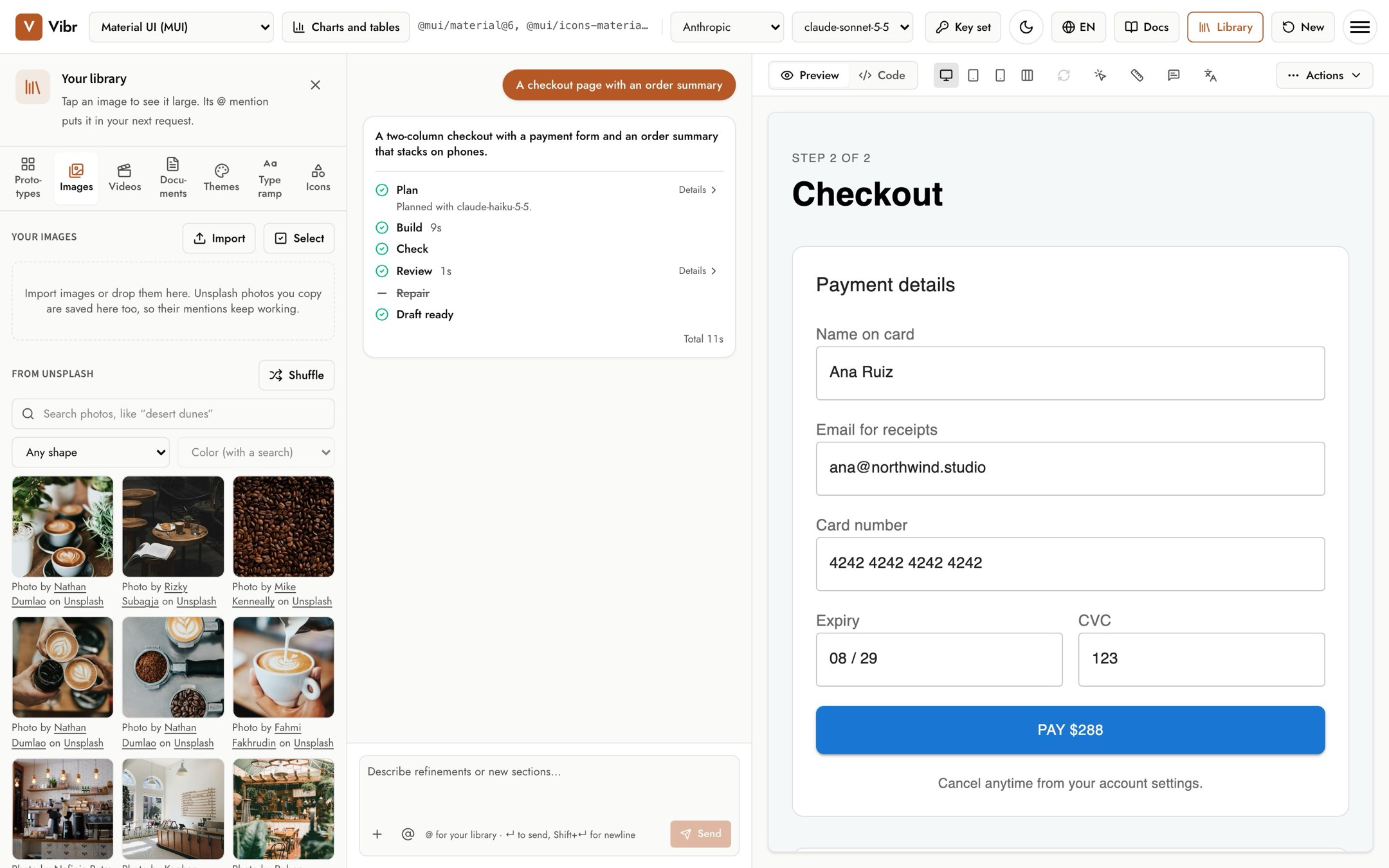
- Your images: select Import, or drop PNG, JPEG, WebP, GIF, AVIF or SVG files. Each image gets a mention from its file name, like
@image/storefront. - From Unsplash: search for photos, filter by shape or color, or select Shuffle. Copying a photo's mention saves it to your images, so the mention keeps working. Every photo is credited to its photographer. Wherever an Unsplash photo appears (the library, the canvas and exported apps), it reads "Photo by name on Unsplash", linked to the photographer's Unsplash profile and to Unsplash.
- Select an image to see it large. From there you can copy its mention, add it to your request, download it, or edit its mention name and alt text. Use Select to delete or export several at once.
When you mention an image, Vibr tells the model its size, shape and alt text and places the real image in the draft.
When you add an image, Vibr removes its metadata, such as camera details, location and comments, and keeps the picture itself unchanged. An SVG keeps only its drawing: scripts, links and anything else that could run or load from another site are removed, and colors set with styles, as Illustrator and Inkscape export them, are kept. Unsplash photos stay exactly as Unsplash serves them. Images from other websites don't load in the canvas: add them to your library and mention them instead.
Videos
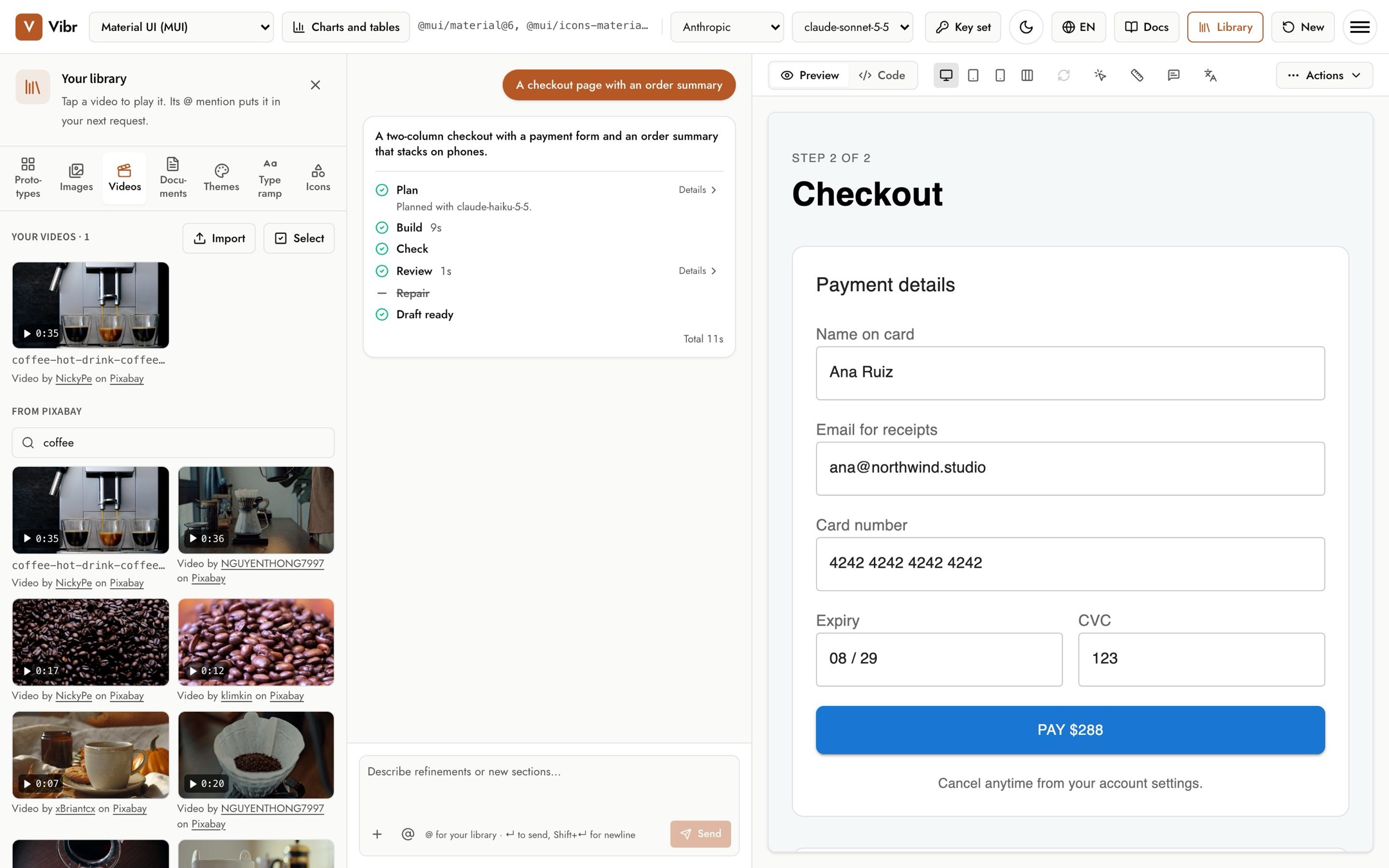
- Your videos: select Import, or drop MP4, MOV or WebM files up to 100 MB. Each video gets a mention from its file name, like
@video/latte-pour, and a poster frame from about a second in. - From Pixabay: search for videos. Copying a video's mention saves it to your videos, so the mention keeps working. Every Pixabay video is credited to its creator: wherever one appears (the library, the canvas and exported apps), it reads "Video by name on Pixabay", linked to the creator's Pixabay profile and to Pixabay.
- Select a video to play it. From there you can copy its mention, add it to your request, download it, or edit its mention name and description. Use Select to delete or export several at once.
When you mention a video, Vibr tells the model its size, shape, length and description and places the real video in the draft. Drafts play videos muted and looping, with a poster, and don't start them on their own for people who ask their device for reduced motion.
When you add a video, Vibr removes an MP4 or MOV file's metadata, such as the location and the device it was filmed on, and keeps the picture and sound unchanged. A few frames go through the same on-device check as images. Pixabay videos stay exactly as Pixabay serves them.
Exported apps carry your videos with them. Up to 25 MB of uploaded video fits in the single page; past that, App (.html) downloads a zip with the page and a videos folder beside it.
Documents
Keep briefs, research notes and design challenges here, and bring one into any request with its mention, like @doc/ordering-app-brief.
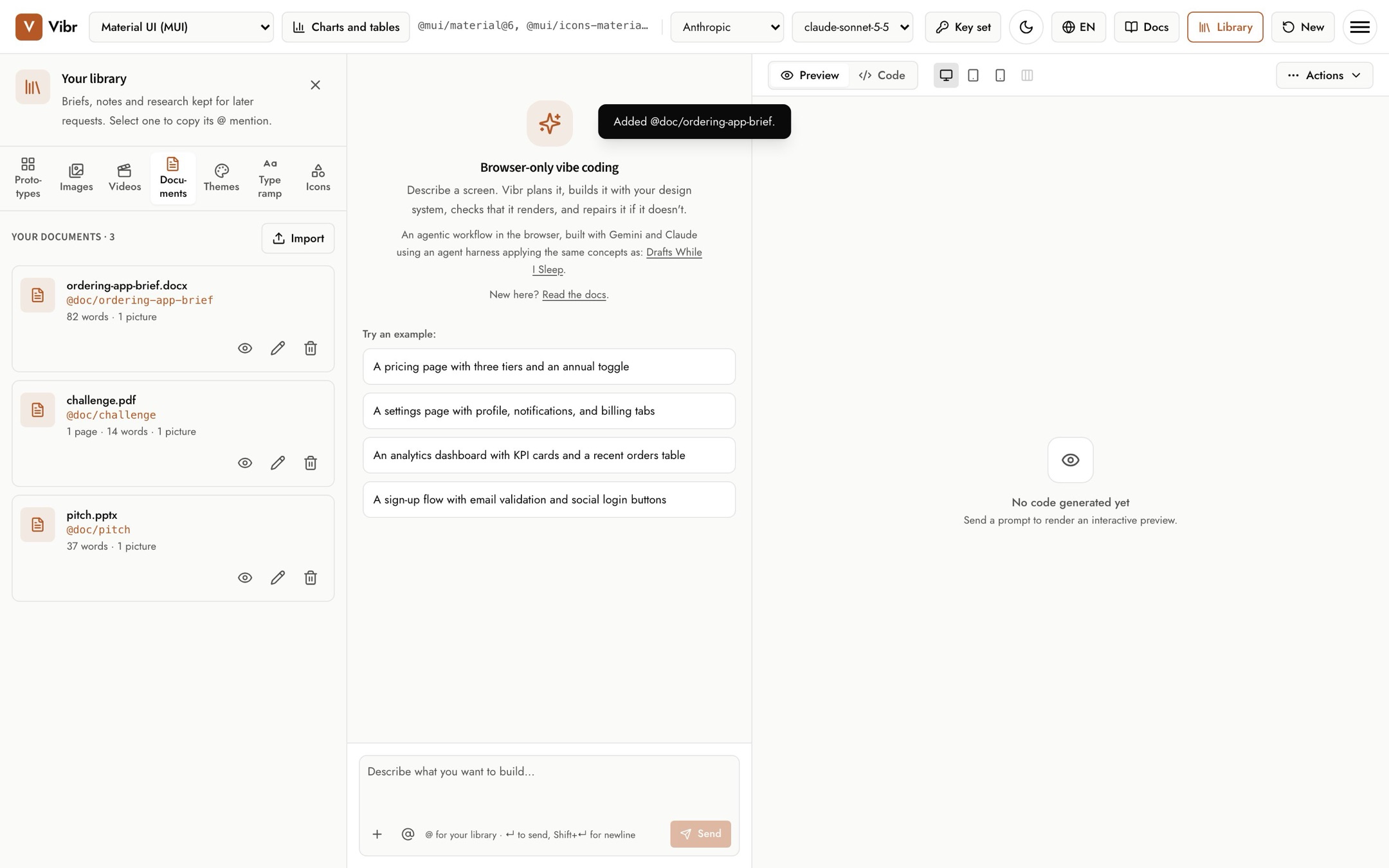
- Add documents: select Import, drop files onto the library, or select Save to library in an attached document's preview. PDF, Word, PowerPoint, Excel, CSV, Markdown and text files work, as in Attach documents.
- What's kept: the text Vibr read and up to two pictures, never the file itself, so nothing in it can run later. The same checks apply as when you attach a document.
- Using one: a request that mentions
@doc/namesends that document's text and pictures with it, like an attachment. Later requests don't send it again unless they mention it. - Preview, rename and delete with the buttons on each document. Renaming changes its mention.
Exported libraries and prototype files carry the documents they use, and their text and pictures are checked again when imported.
Themes
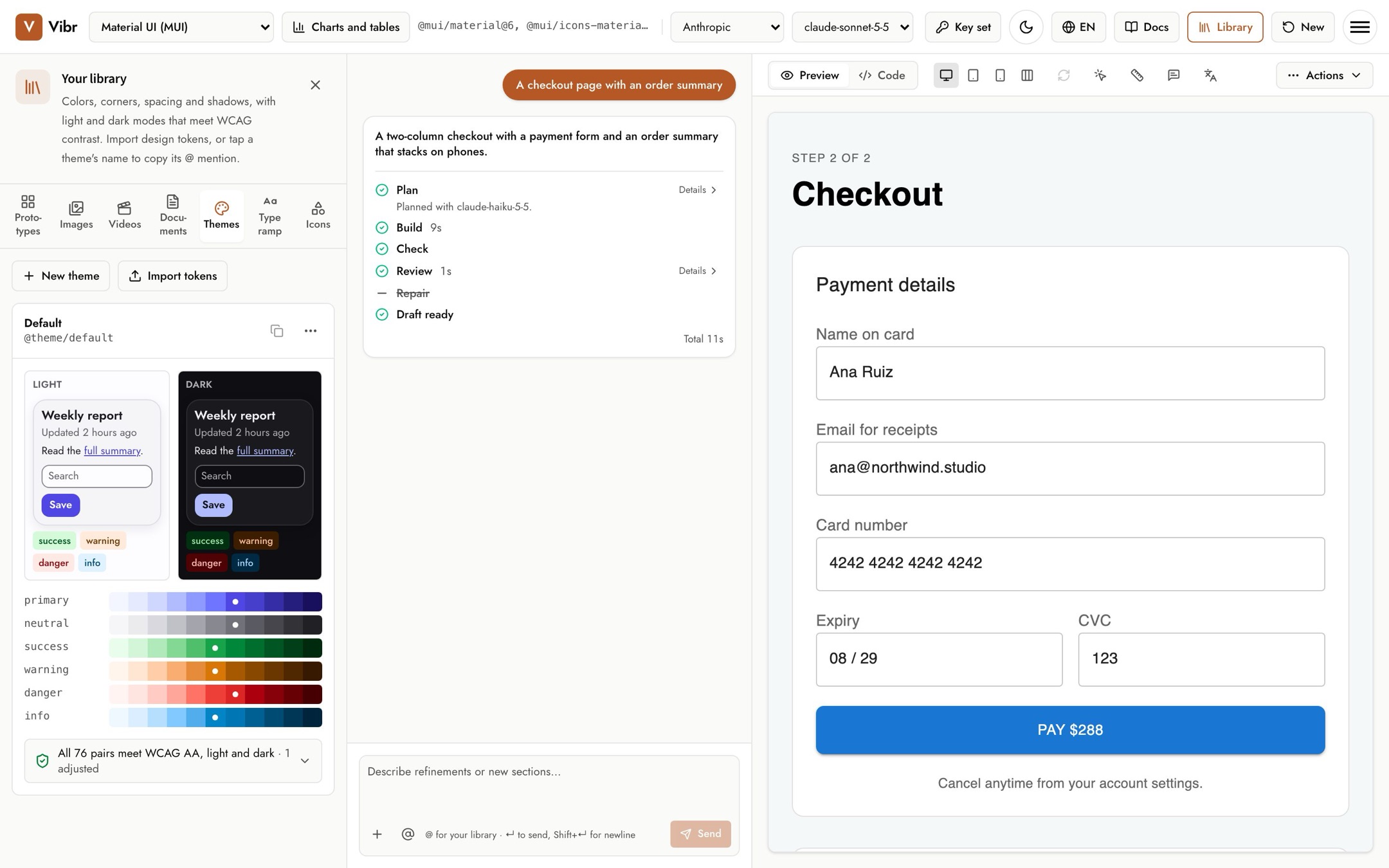
A theme is a set of colors, corner radius, spacing and shadows, with light and dark modes that meet WCAG contrast.
- New theme opens the editor. Pick a primary and a neutral color (plus success, warning, danger and info if you like), the contrast level (AA or AAA), corner radius, spacing unit and shadow style.
- Import tokens brings in W3C design tokens JSON, such as from Tokens Studio for Figma or Style Dictionary, or CSS custom properties.
- Each theme shows whether every color pair meets the contrast level, in both modes.
- A theme's ⋯ menu can edit, duplicate, copy its CSS or tokens, or delete it.
Mention a theme like @theme/default. Drafts that use a theme get a Dark mode button on the canvas.
Type ramp
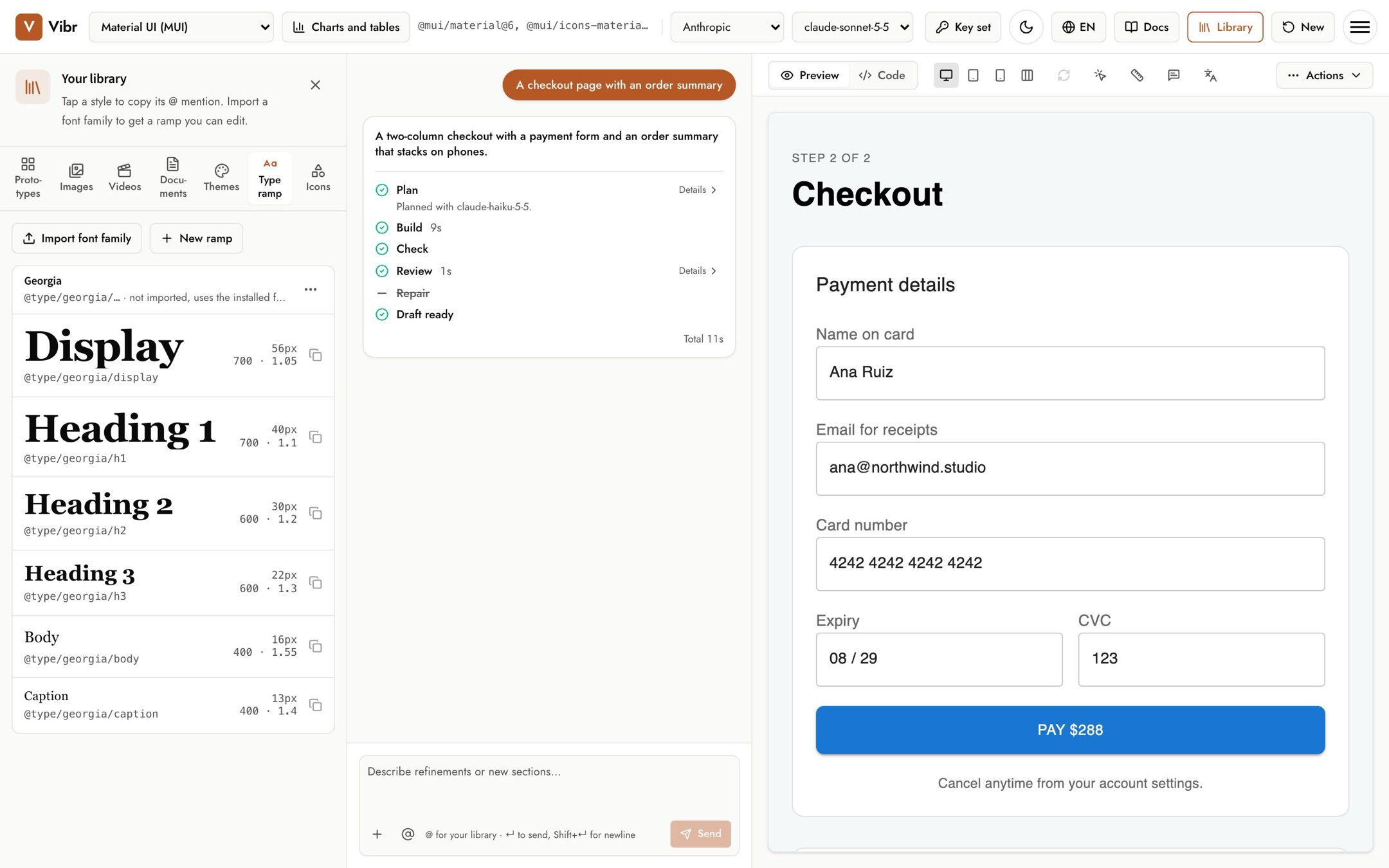
- Import font family adds a font from WOFF2, WOFF, TTF or OTF files and makes a ramp for it.
- New ramp makes a ramp for a font you already use, like Georgia.
- A new ramp has six styles: Display, Heading 1 to 3, Body and Caption. Edit ramp changes sizes, weights, line heights and tracking, or adds styles.
Mention a style like @type/georgia/h1.
Icons
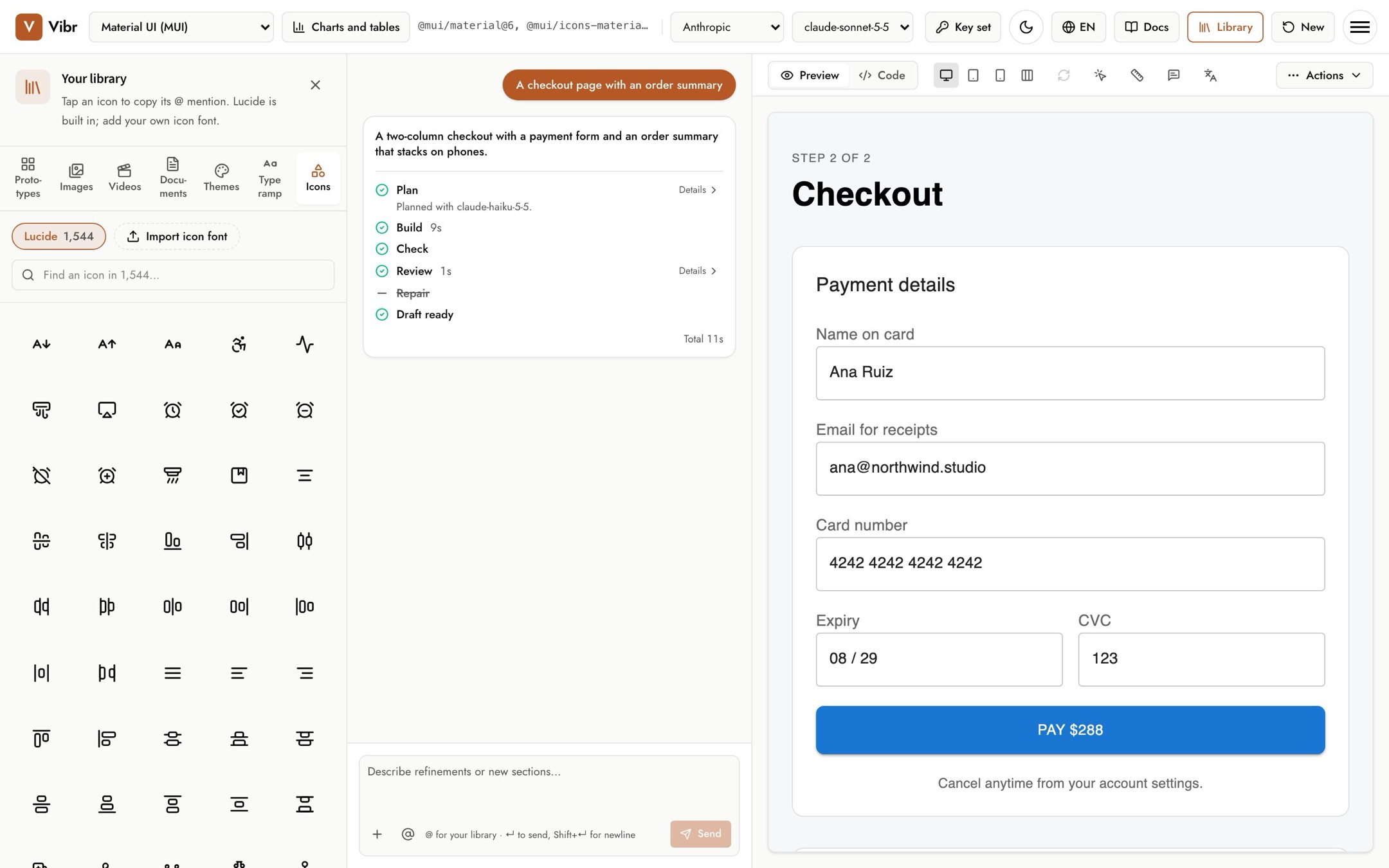
- Lucide icons are built in. Search for one and select it to copy its mention, like
@icon/arrow-right. After copying, you can also download it as an SVG. - Import icon font adds your own set, with its CSS, an IcoMoon
selection.jsonor a Fontelloconfig.json. A ligature font like Material Symbols works on its own. Imported icons use@icon/set/name.