Building
The canvas
Preview and code, phone and tablet widths, versions, undo and redo, the before and after compare slider, and previewing in other languages.
The canvas is the live, interactive draft. Click, type and scroll in it as you would on a real page. The bar above it holds the tools on this page.
Preview and code
- Preview shows the working screen.
- Code shows the React code for the version on the canvas. It's read-only; select Copy code to copy it.
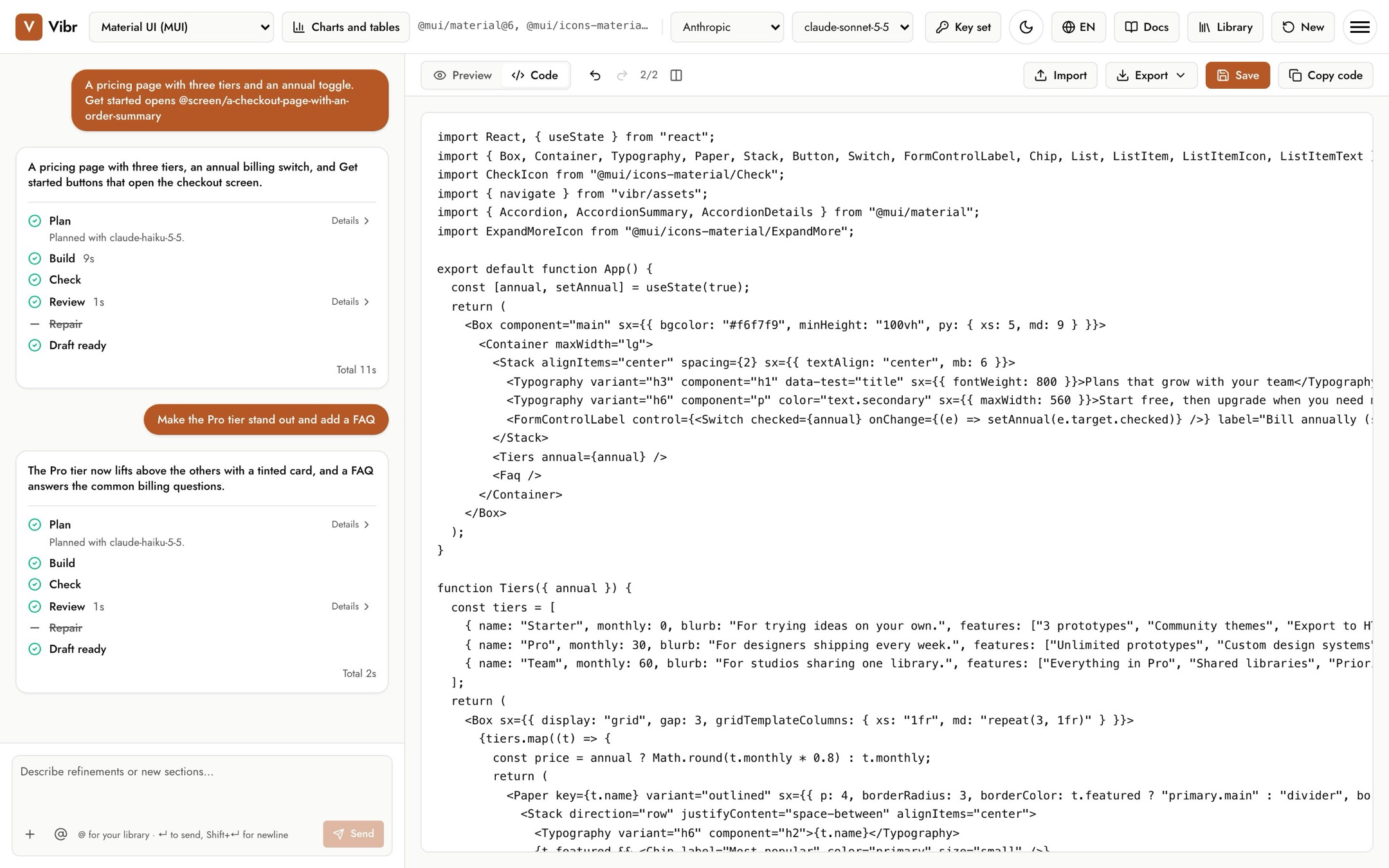
Desktop, tablet and phone widths
Use the three device buttons to see the draft at full width, 768 pixels (tablet) or 390 pixels (phone). They appear when the canvas has room for them.
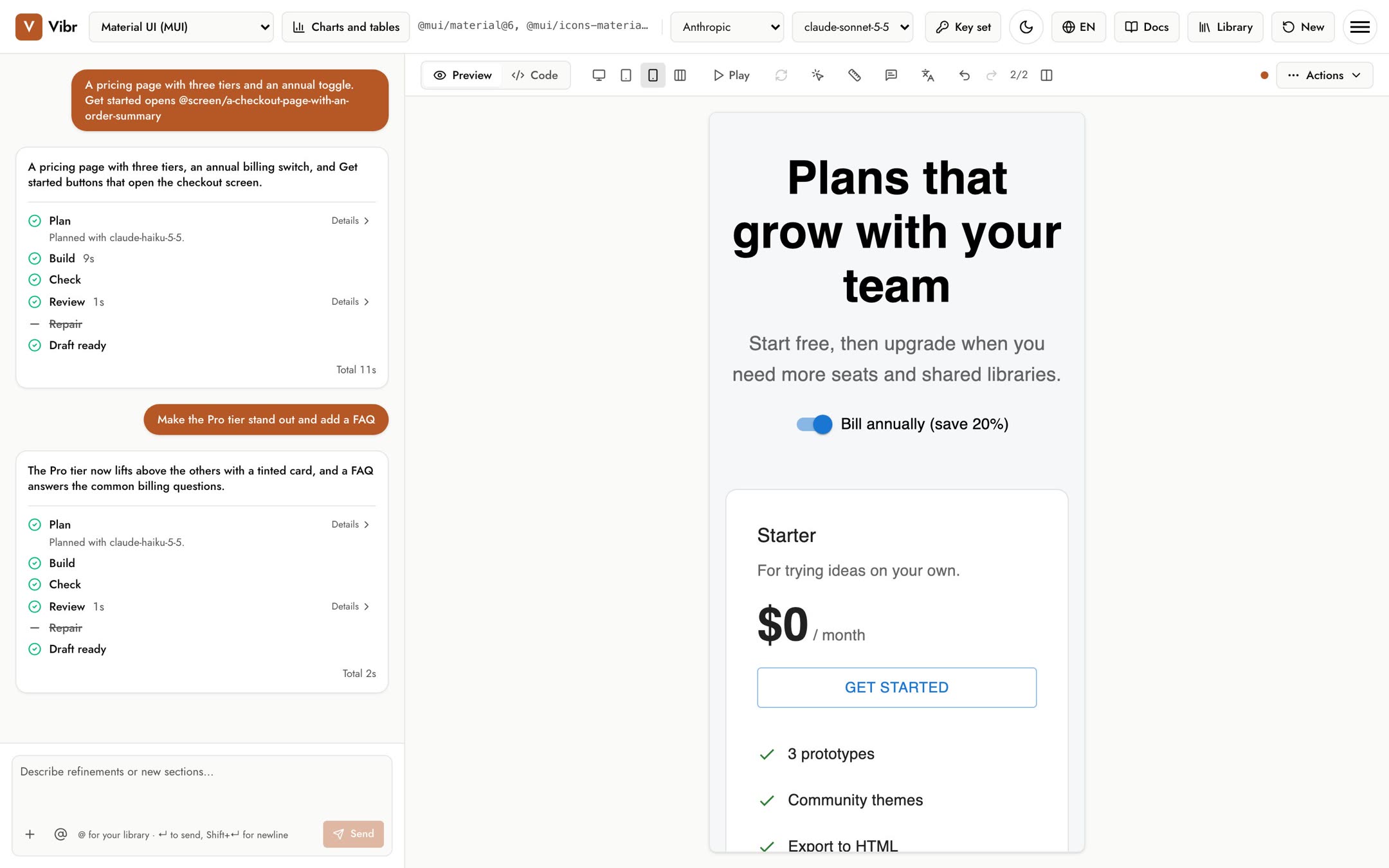
All sizes, the button after the phone, shows the draft at phone, tablet and desktop width side by side, each a live page scaled to fit. Light or dark and the preview language apply to all three, so you can check a language at every width at once. To select, measure or annotate, go back to one width.
Measure spacing
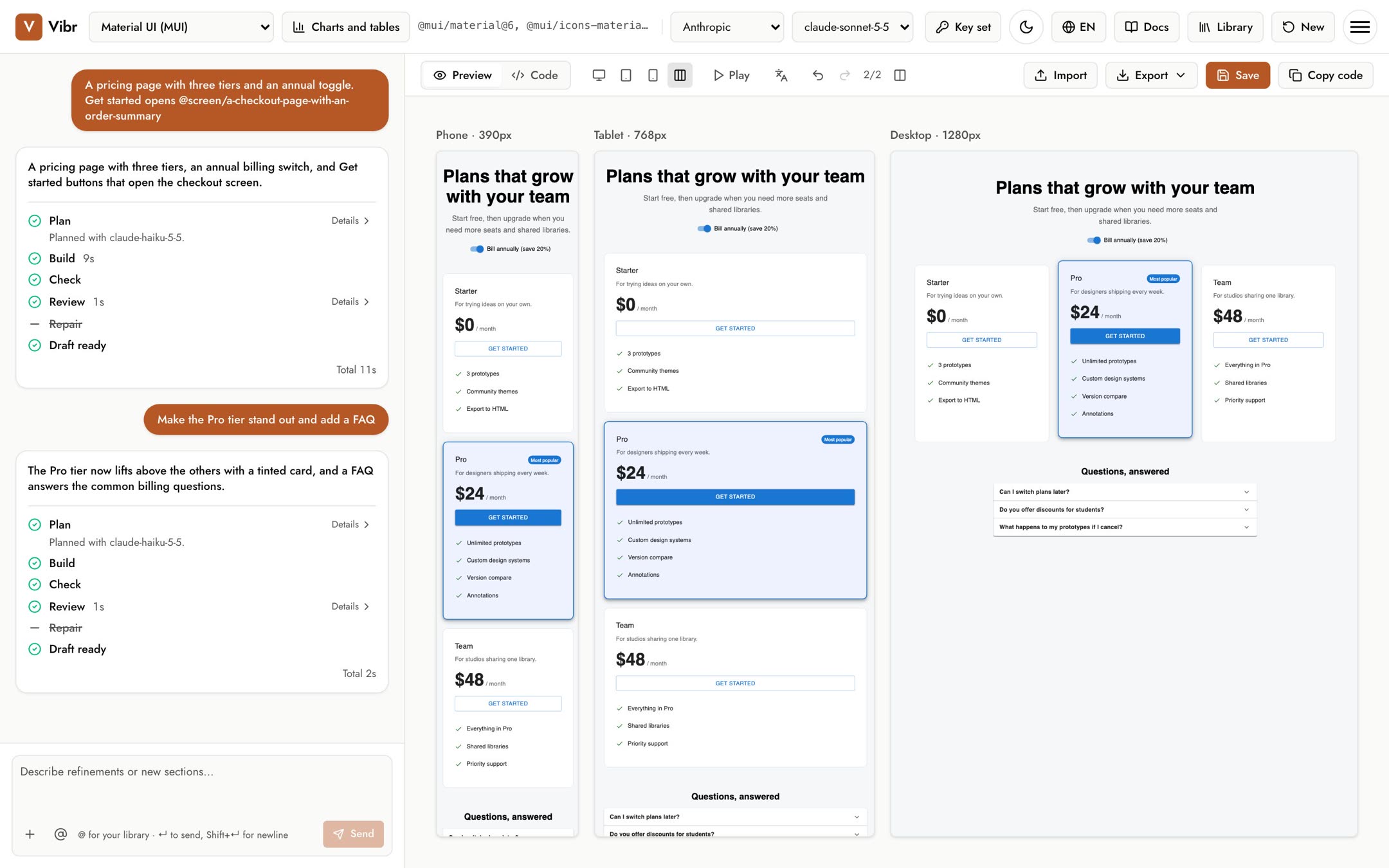
Select Measure spacing (the ruler icon) to check spacing the way you would in a design tool. You can also hold Alt (Option on a Mac) over the canvas without turning it on.
- Hover an element to see red rulers on all four sides, with the distances in pixels. Up, down, left and right, each runs to the nearest element in line with it, or to the edge of its container when nothing is in between. The element also shows its width and height.
- Click an element to measure from it, then hover another to see the gaps between them. Hover its container to see all four insets.
- On a touch screen, tap one element, then another.
- Press Esc to let go of the element you clicked, and again to stop measuring.
Distances are the draft's CSS pixels, borders included, so the canvas's size doesn't change them. While you measure, clicks don't press buttons or follow links.
Reload
After you click around in a draft, Reload takes it back to its first screen. It's turned off until you've interacted with the draft.
Versions
Every draft in a session is kept as a version. When there's more than one, the bar shows a counter like 2/2 with undo and redo buttons.
- Undo shows the previous version, and Redo the next. You can also press ⌘+Z and ⌘+Shift+Z (Ctrl on Windows) when you're not typing in a field. The version swaps in without reloading the canvas.
- Your next request revises whichever version is on the canvas, so you can go back and take a different direction.
- A saved prototype keeps up to its 20 most recent versions.
Compare versions
Select Compare versions to see two versions side by side with a slider between them. Both sides scroll together.
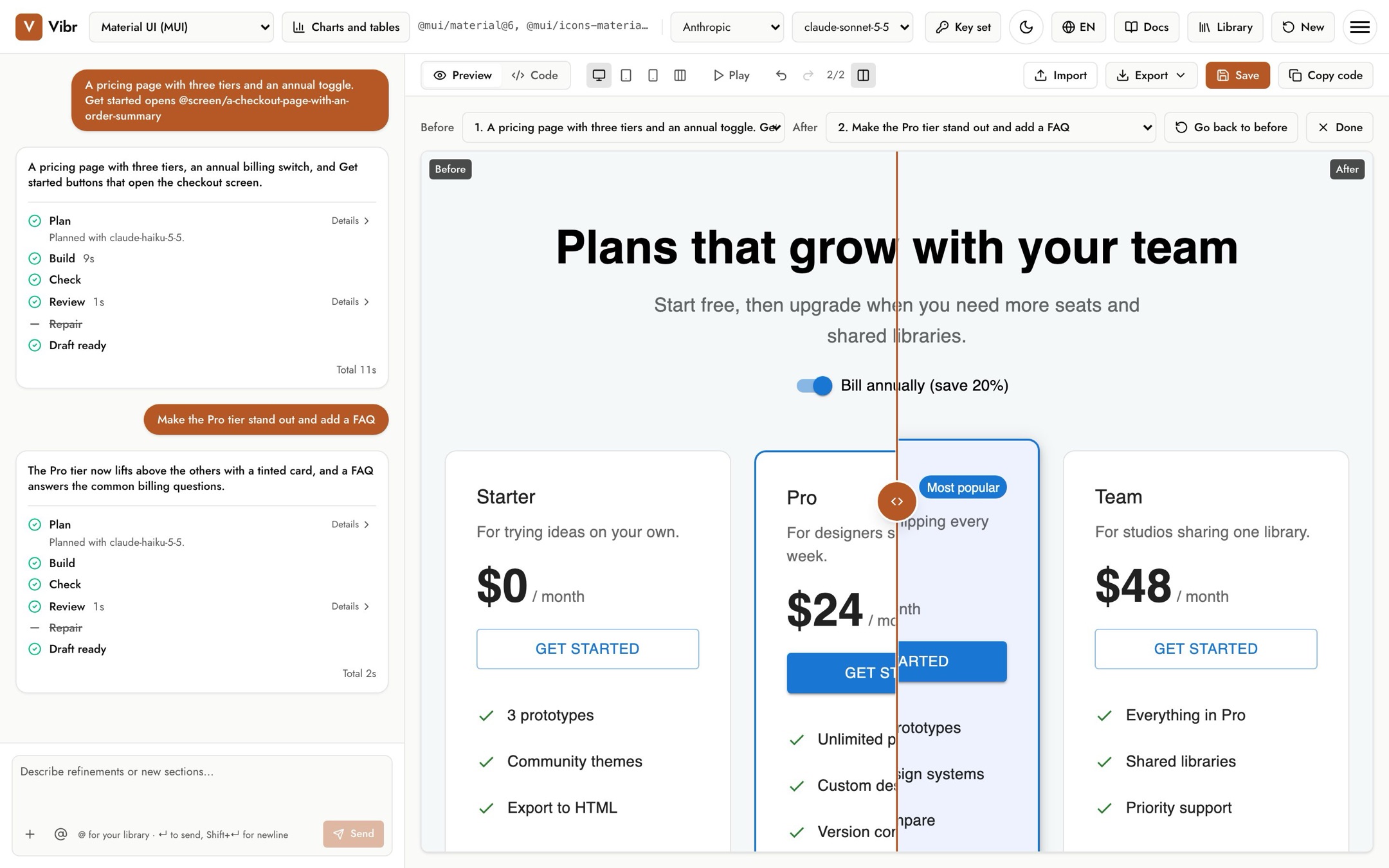
- Choose any two versions in the Before and After lists.
- Drag the divider, or focus it and use the arrow keys (hold Shift for bigger steps, Home and End for the edges).
- Go back to before puts the before version on the canvas, so your next request revises it.
- Select Done or press Esc to leave.
Light and dark preview
When a draft uses one of your color themes, a Dark mode button appears so you can check both modes. This only changes the draft, not Vibr.
Preview in another language
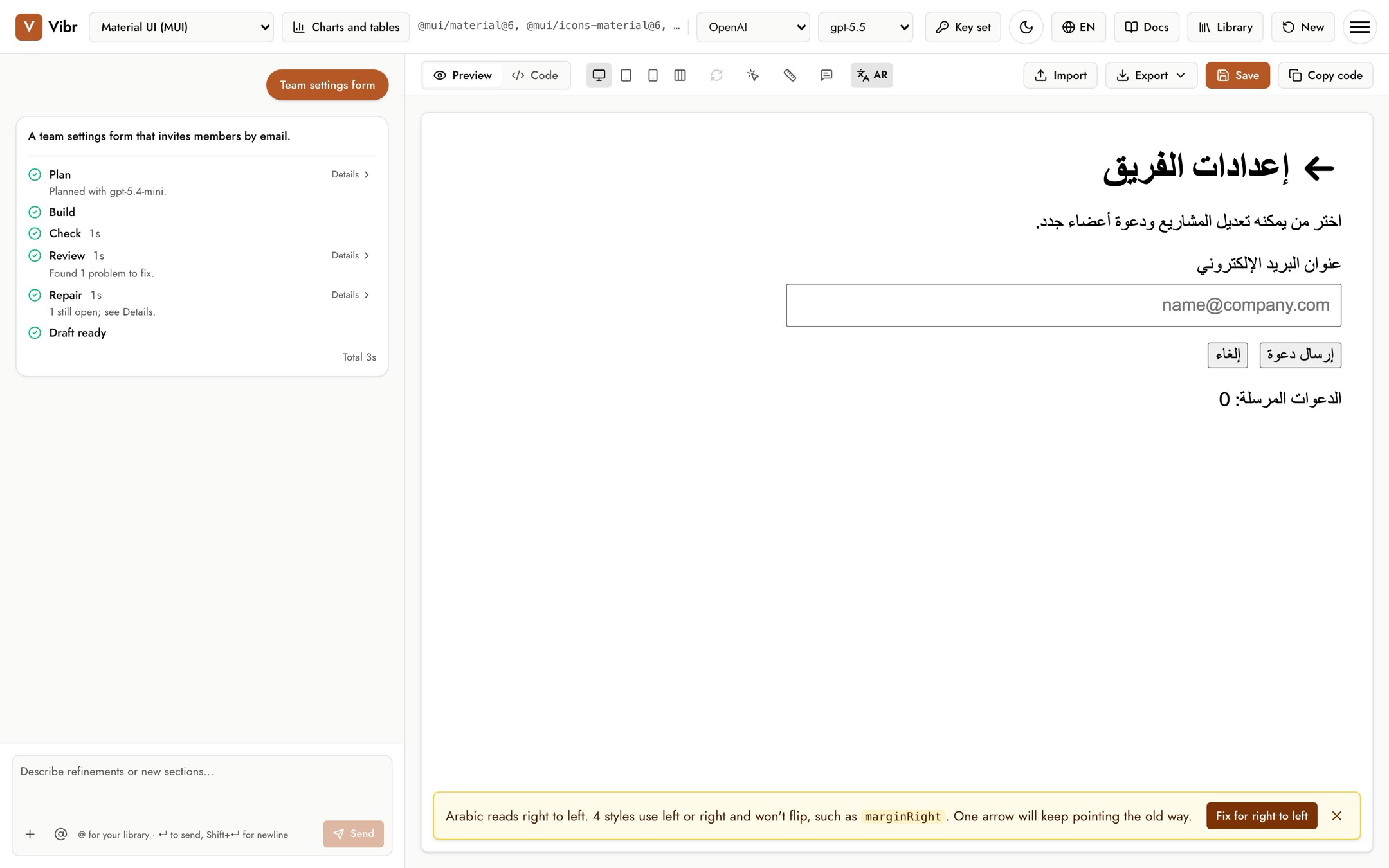
The Preview language button (the translate icon) shows the draft in another language, so you can see how your design holds up before anyone translates it for real. Pick one of more than 40 languages, including Arabic and Hebrew, which read right to left. The draft's text, placeholders and labels change, and the page sets its language and direction to match. Your code doesn't change, and the language stays on as you build.
- Your model translates. Vibr sends the draft's visible text to the model you picked, using your key, a few dozen strings at a time. New text, such as a count that goes up, is translated as it appears. Each string is translated once per session.
- Right to left. New drafts use logical properties, like
marginInlineStart, which flip on their own. While Arabic or Hebrew is on, the design review also looks for styles that use left or right and arrows that won't mirror, and Repair fixes them before the draft is shown. A draft made before you switched gets a notice instead, with Fix for right to left. - Pseudo needs no model. It accents every letter and makes the text about 40% longer, like German or Finnish often run, so clipped labels and fixed widths show up right away.
- Samples need no key. The samples come in all of Vibr's languages, so previewing one in any of them, Arabic and Hebrew included, works without a key. Other languages, and text you add to a sample, are translated by your model.
- Export in that language. With a language on, the Export menu adds App in that language. The exported page opens in the language, with its direction, and translates the draft's other text too, such as other tabs and dialogs. Other exports keep the draft's own text.
- Fonts. If a font you imported doesn't have the language's letters, a notice names a few it's missing and suggests similar Google Fonts that have them. Use adds one to the font's type ramp as a fallback, so the canvas and exported apps load it.
- Choose The draft's own text to go back.
Links in the canvas
Links don't leave the canvas, so you can't lose your draft by clicking one. Vibr tells you where the link goes instead. An exported app follows its links. Buttons that open another saved screen work with Play; see Flows.
On a phone
On small screens, Vibr shows Chat and Preview as tabs. A dot on Preview means there's a new draft you haven't seen yet. Tools that don't fit above the canvas move into the Actions menu. When the tools above the canvas don't all fit, swipe them sideways.