Building
Import from Figma
Bring a Figma design into Vibr: variables become a theme, text styles a type ramp, and frames screens linked the way your prototype links them.
Send to Vibr is a Figma plugin. It reads the file you have open in Figma (variables, styles, components, frames and prototype links) and saves it as one file. Vibr imports that file and builds from it with your design system and your model.
Install the plugin
In Figma, open the Plugins menu, search for Send to Vibr, and run it. The plugin works on every Figma plan, including Starter.
Choose what to send
The plugin sends whatever level of the file you pick, from the whole file down to one element:
- Whole file: each page's prototype flows, or else its screens, page by page. Cover, thumbnail and divider pages are skipped.
- A page with nothing selected: its flows, or else every screen on it.
- A section: its frames, each as a screen.
- A frame: that screen.
- An element: a component, an instance, or any layer inside a frame. Vibr builds it on its own as a reusable component.
Select what you want, or choose This page or selection or Whole file at the top of the plugin. The plugin lists what it will send. You can mix them: a screen and two elements go together.
Under that, choose what comes along:
- Screens and elements, with layout and prototype links, and Include frames they link to, so a flow arrives whole. Photos in them come along too, cropped as your design shows them.
- Variables, text styles and shadows, from the whole file.
- Components, with their variants. The ones your screens use come first.
One file holds up to 12 screens and elements, 12 photos, 80 components and 1,500 variables.
Save the file
Select Save file for Vibr. The plugin saves a file ending in .vibr-figma.json. Copy puts the same thing on the clipboard instead.
Import it into Vibr
In the request box, select + and then Import from Figma, and pick the file. You can also drop the file on the request box, or paste what Copy put on the clipboard.
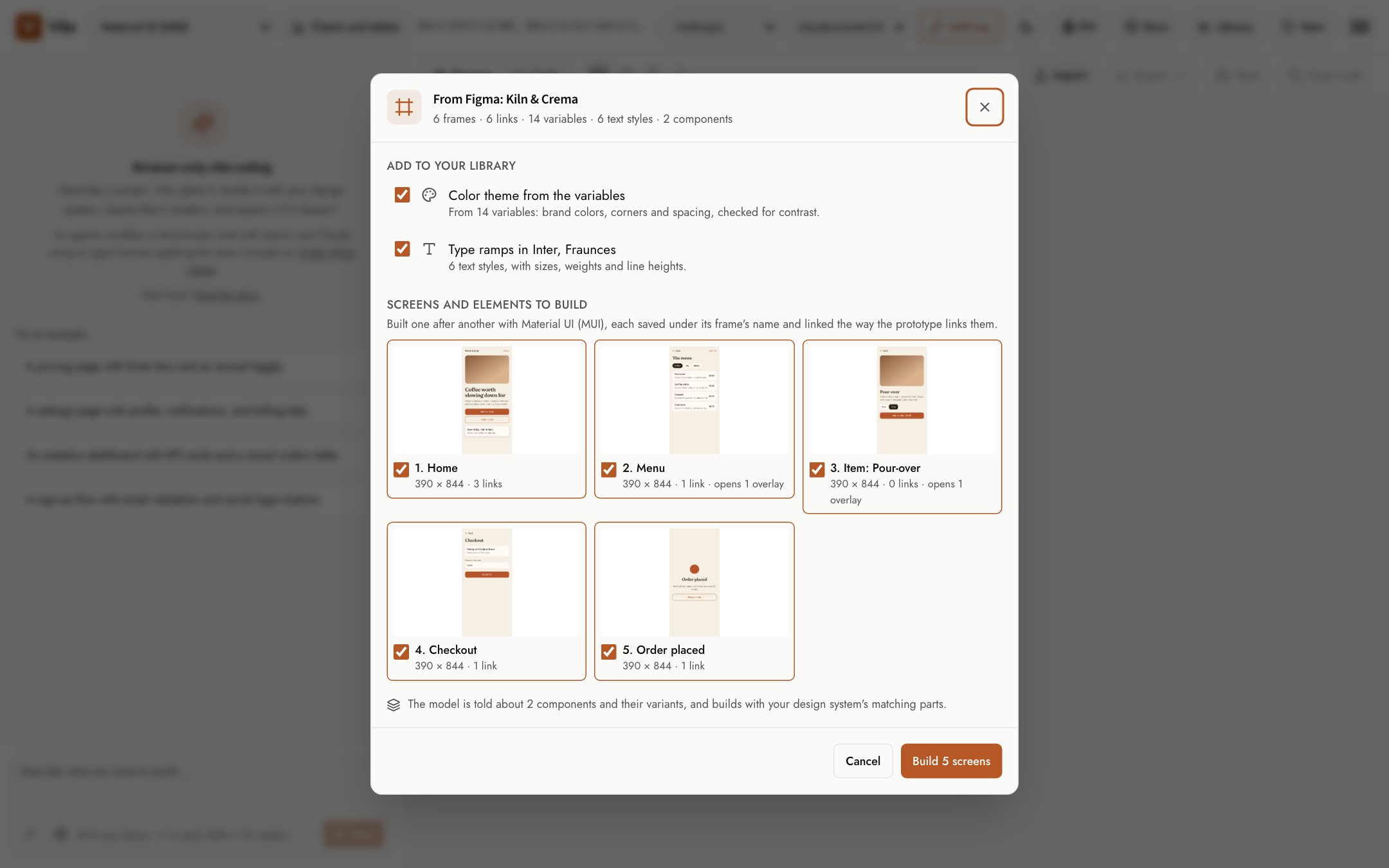
The dialog lists what Vibr will make. Uncheck anything you don't want:
- Color theme from the variables, added to your library.
- Type ramps, one per font family, added to your library.
- Photos from the frames, added to your library like uploaded images, so the screens show the real pictures.
- Screens and elements to build, in the order your flow visits them.
Select Build. Vibr builds each screen as its own request with your design system and model, saves it under its frame's name, and moves on to the next. A bar above the request box shows which screen it's on. Stop ends the run and keeps the screens already built.
When the run ends, Vibr opens the first screen. Select Play to click through the flow. See Flows.
Importing the same file again reuses the theme and type ramps the first import made.
What becomes what
| In Figma | In Vibr |
|---|---|
| Color variables | A color theme. Scales like Brand/500 and short names like color/clay become its colors; Vibr builds the light and dark roles from them and checks them for contrast. |
| Radius and spacing variables, shadow styles | The theme's corners, spacing unit and shadows. |
| Text styles | A type ramp for each font family, with sizes, weights, line heights and letter spacing. Vibr asks for the fonts from Google Fonts when it has them. |
| Image fills | Photos in your library, named after their layers (a layer called Photo: latte pour becomes @image/latte-pour), which the screens use. |
| Frames | Screens. The model gets the frame's picture and an outline of its layers: auto layout, text, components and the tokens each layer uses. |
| Prototype links | Links between the screens. Back goes to the screen before. An overlay is built into the screen that opens it, as a dialog or sheet, with its own links. |
| Components | The model is told your components and their variants, and builds with your design system's matching parts. |
| An element | A component built on its own, centered on the page. |
Privacy and safety
- The plugin has no network access. Nothing leaves Figma except the file you save.
- Vibr checks the file before it reads it. Text comes in as plain text, with hidden characters removed, and every value is checked and limited in size. Each picture must be a real image of a size Vibr will open, and Vibr redraws it, which removes its metadata. Photos join your library through the same checks as an upload. Text goes through the same content check as a typed request.
- Nothing in the file runs. Its text goes to your model with each request as material to design from, the same way an attached document does. See Keys, privacy and storage.
Tips
- Name frames the way you want the screens named. A frame called Checkout becomes
@screen/checkout. - For a large file, send a page or a selection instead of the whole file.
- After a run, refine any screen with a normal request, like "make the cart a bottom sheet".