Start here
Getting started
Add a key, choose a design system and model, and build your first screen in a couple of minutes.
Before you start
You need an API key from one of these providers. Each has a free or low-cost way to try it.
- Google Gemini: get a key from Google AI Studio. Free-tier keys work with the Flash models; Pro models need billing turned on.
- OpenAI: create a secret key in the OpenAI dashboard.
- Anthropic: create a key in the Anthropic Console.
On a paid account, a draft usually costs a few cents. The key dialog shows the range for the model you picked.
No key yet? Try the samples
On your first visit, the welcome has Try a sample, no key needed. It adds three finished prototypes to your library and opens the first: a cafe home page, its menu screen and an operations dashboard. Everything that doesn't ask a model works on them, including selecting elements, comparing versions, all sizes, measuring, notes, Play and export. To change a sample with a request, add a key. Later, the key dialog offers Open a sample too, until you save a key.
Add your key
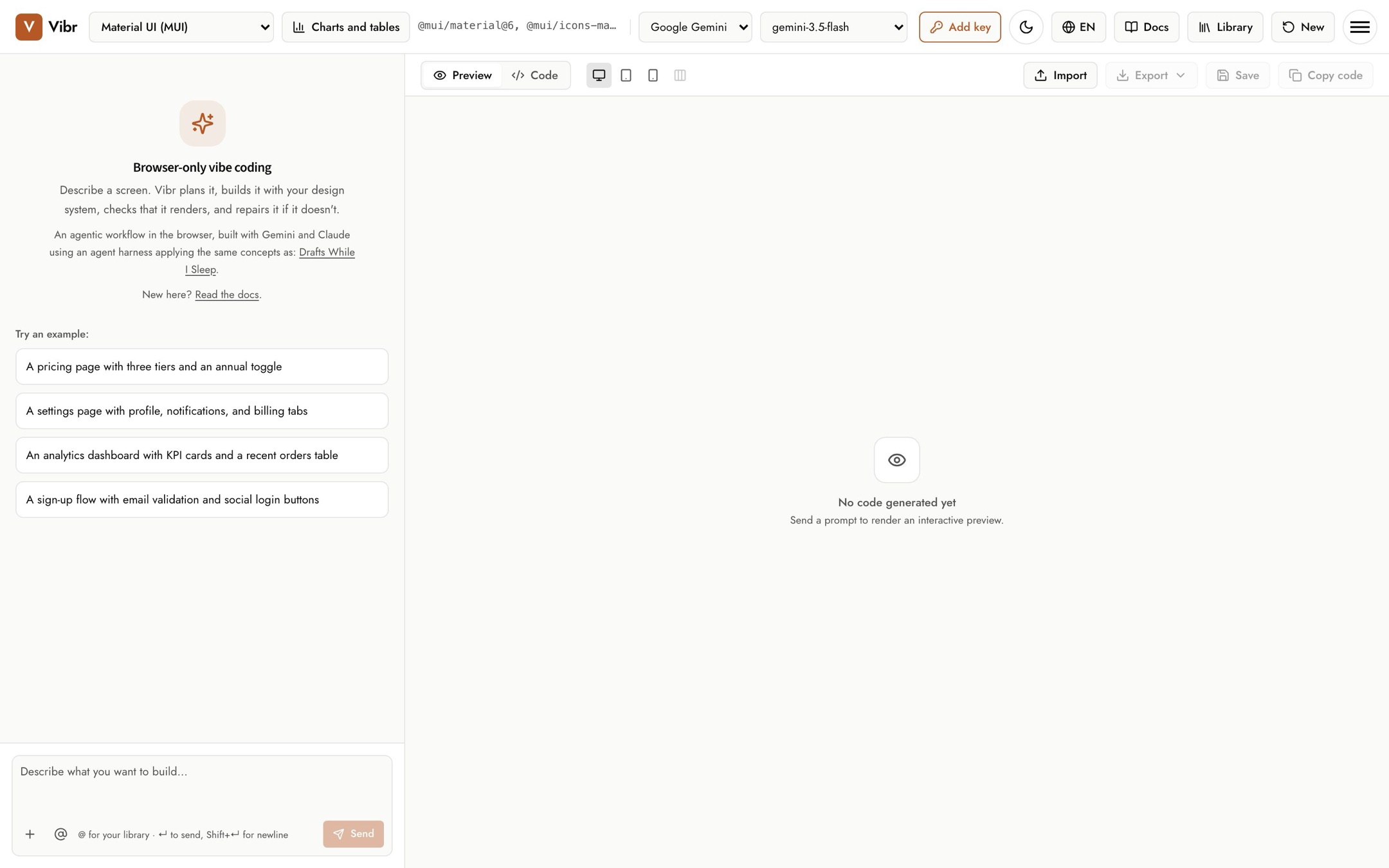
- Choose your provider in the AI provider picker in the top bar.
- Select Add key. The dialog names the provider you picked.
- Paste the key and select Save key. The button changes to Key set.
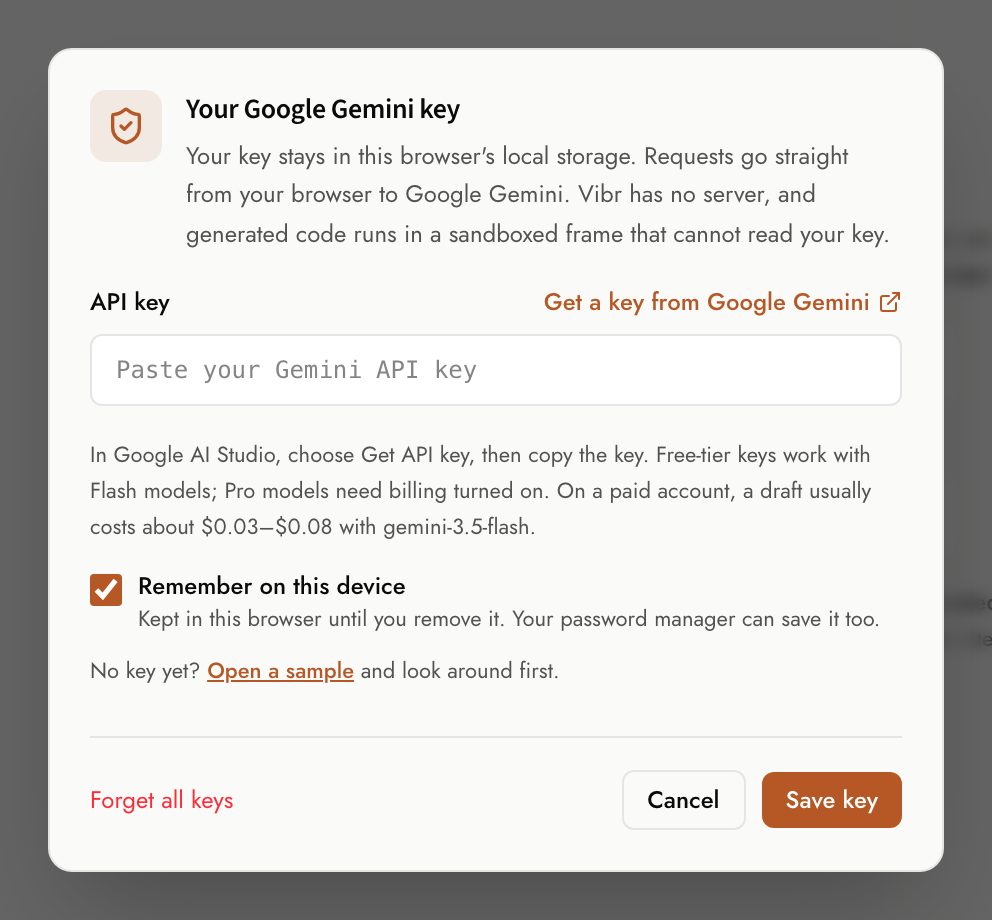
Vibr checks what you paste before saving it. It catches common mix-ups, like a key ID instead of the secret, a key from a different provider, an Anthropic Admin key, or a stray space, and tells you what to fix. You can save a key for each provider (Gemini, OpenAI and Anthropic) and switch between them any time; every model from a provider uses its key. To set another, pick that provider and select Add key again. Remove this key removes only the current provider's key. Forget all keys removes every saved key from this browser.
Choose a design system and model
- Design system sets the component library every draft is built with. Changing it starts a new session, because a draft can't switch libraries halfway. See Design systems and models for the full list and for using your own npm package.
- AI provider and Model set who builds the draft. Each provider has a sensible default, and Vibr remembers your choice in this browser.
Use Vibr in your language
Vibr opens in your browser's language when it's one of these: English, Arabic, Chinese (Simplified), Dutch, French, German, Hebrew, Italian, Japanese, Korean, Portuguese (Brazil) and Spanish. Otherwise it opens in English. To choose a language yourself, use the Interface language button (the globe) in the top bar. On a phone, it's in the settings under the design system. Choose Automatic to follow your browser again.
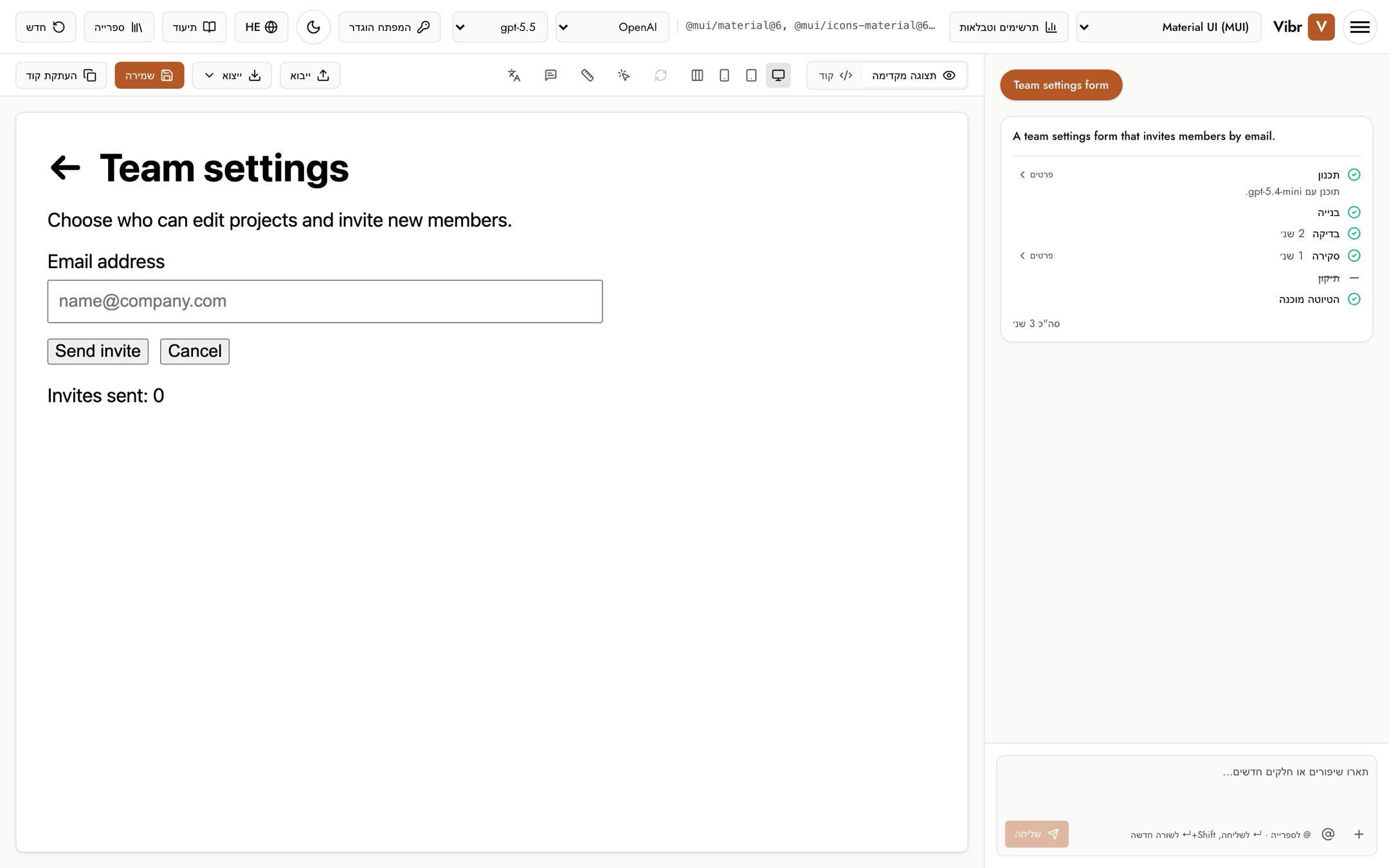
In Arabic and Hebrew, Vibr reads right to left: the layout mirrors, and arrows point the other way. This changes only Vibr itself. To see your draft in another language, use Preview in another language on the canvas. The docs come in the same languages: use the language menu at the top of any docs page.
Build your first screen
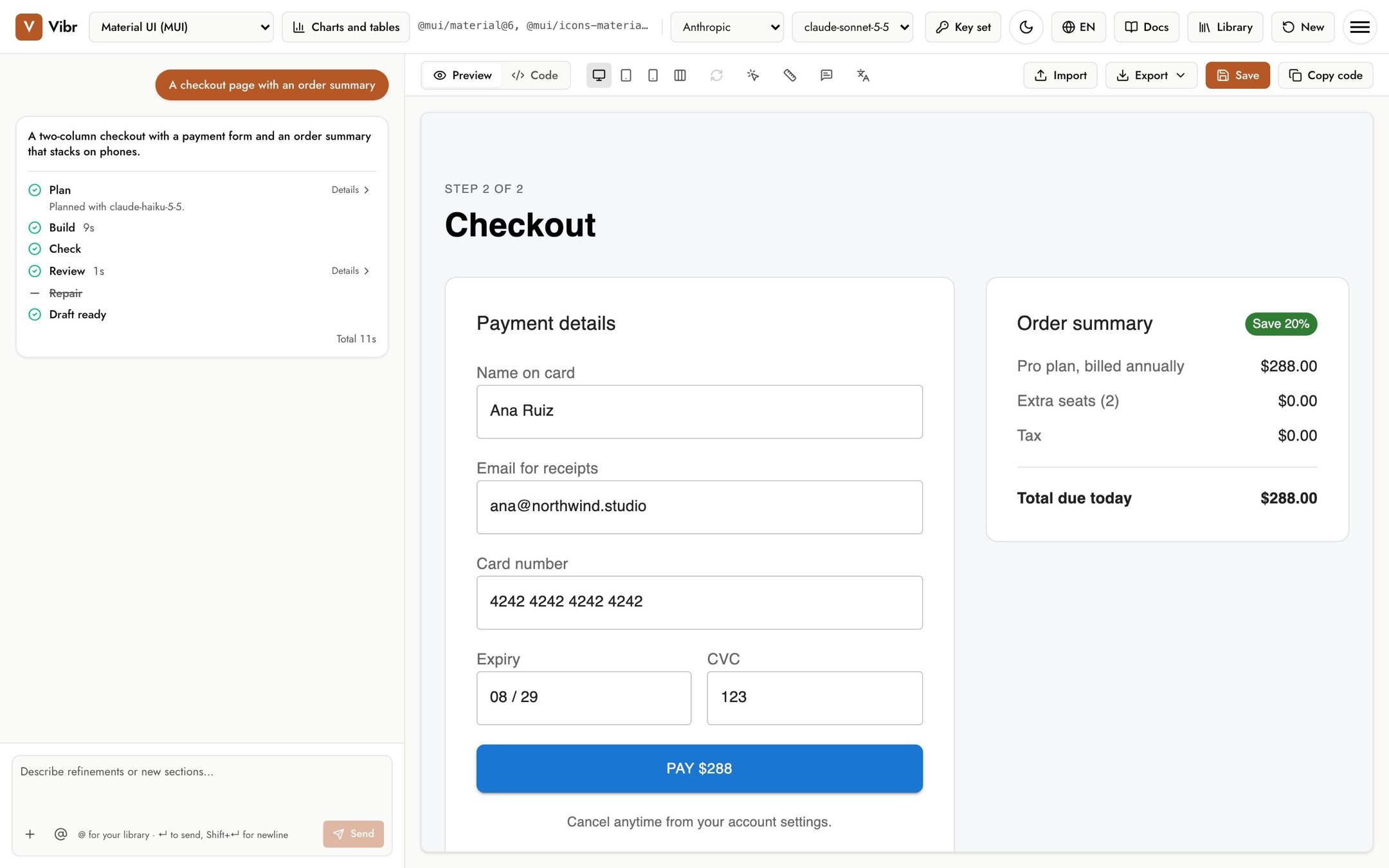
Type what you want in the box at the bottom of the chat, or select one of the examples, like "A pricing page with three tiers and an annual toggle". Press Enter or select Send.
The chat shows each step as it happens, and the canvas starts drawing the screen while it's still being written. Most screens are ready in under a minute.
What to do next
- Ask for changes in plain words: "Make the summary card sticky" or "Add a coupon field".
- Select Save to keep it in your library.
- Try the canvas tools: phone and tablet widths, versions, and compare.