Building
Flows
Link screens together with @screen mentions, click through them with Play, and export the whole flow.
A flow is a set of saved prototypes that link to each other, like a pricing page whose buttons open a checkout page. You build each screen on its own, then ask Vibr to link them.
Link one screen to another
- Build the screen you want to link to, like a checkout page, and select Save.
- Select New to start the next screen.
- In your request, mention the saved screen with
@screen/, for example: "A pricing page with three tiers. Get started opens @screen/a-checkout-page-with-an-order-summary".
Each saved prototype's screen name comes from its title. Type @screen/ to see the list, or @ and the first few letters of the title.
Clicking a linked button in the canvas doesn't leave the draft. Vibr tells you which screen it opens and reminds you to use Play.
Play the flow
When a draft links to other screens, a Play button appears above the canvas. Select it to click through the flow as a user would.
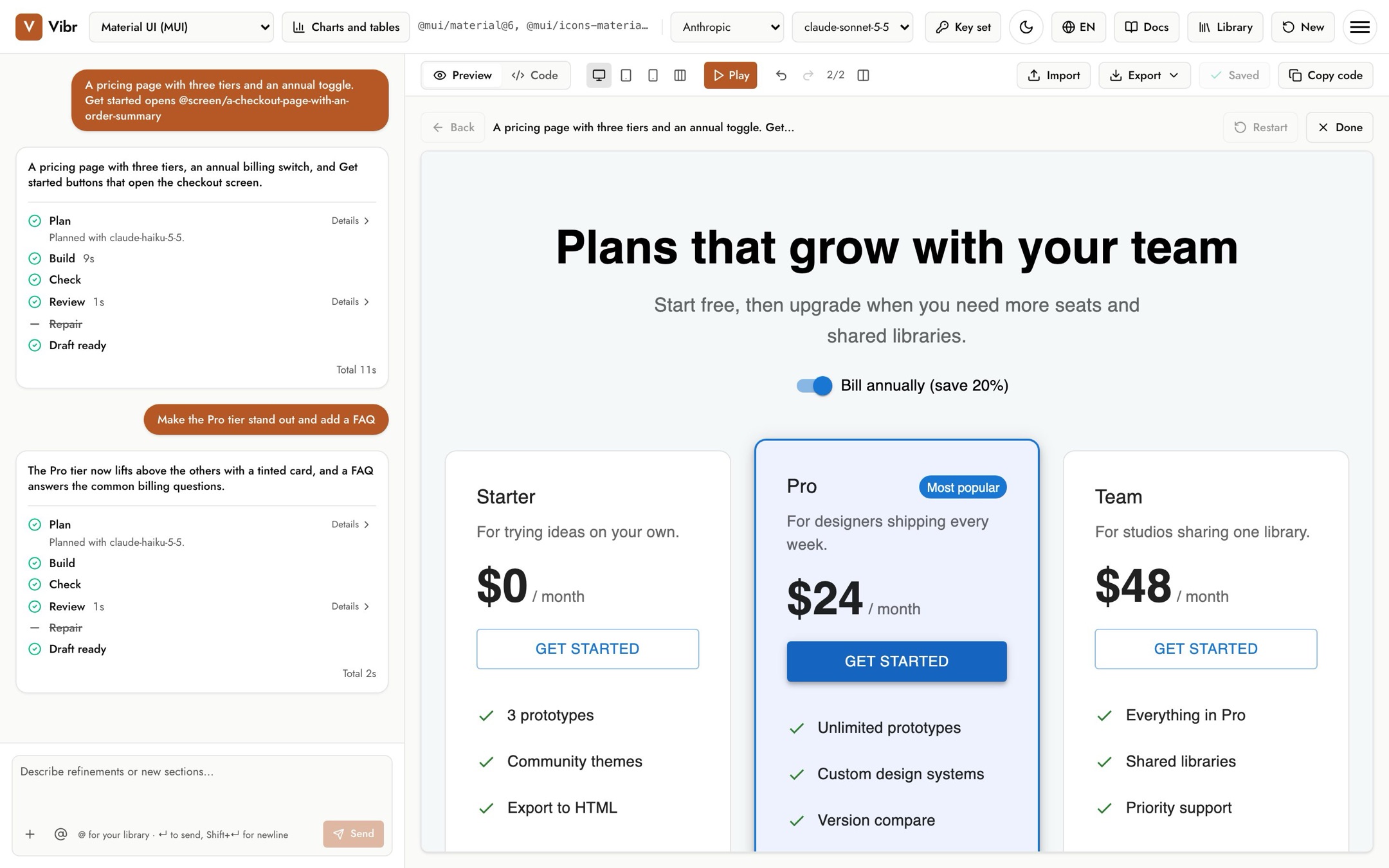
- The trail above the canvas shows the screens you've visited.
- Back returns to the previous screen, and Restart goes back to the first.
- Done, or Esc, ends playback.
If a link points to a screen that isn't saved, Play says so. Save a prototype with that name, or ask Vibr to link somewhere else.
Export a flow
From Export, choose Flow (.zip) to download this screen and every screen it links to as web pages. Open index.html to start; each linked screen is its own page, and the links work. A flow export includes up to 30 screens. See Library and exports.